Our approach: This article is based on published product information and use-case analysis. We have not conducted hands-on testing for this article.
TechGearPilot may earn a commission from qualifying purchases made through links on the site, at no extra cost to you. How our links work.
Start with your device's documented input, then check the cable and the busiest combination of connected devices. Buy wattage to solve that requirement.
Your new charger has the right connector, but your phone does not show its fastest charging mode. Or your laptop says it is plugged in while its battery continues to fall. These problems can look similar even when the cause is completely different.
The useful question is not “What is the biggest USB-C charger I can buy?” It is “What power can my device accept, and can this complete setup provide it?” The setup includes the charger, cable, port, other connected devices, and the way the device is being used.
This guide takes you from a device list to a sensible shortlist. It also helps you check equipment you already own before spending money.
Before you begin: gather three things
Have the exact model name of each device, its charging documentation, and the label from any adapter that came with it. Photograph small print so you can zoom in. Do not work from a broad family name when there are several generations with different requirements.
Make a short note of when you charge. A laptop left asleep overnight is a different problem from a laptop running demanding software while a phone shares its adapter. The best purchase fits the second situation only if you actually need it to.
Step 1: identify the device’s charging input
Check the manufacturer’s specifications for USB-C charging support, recommended power, and any special cable requirement. A USB-C socket can have different roles, and a physical connector alone does not establish the charging capability you need.
For a Mac, Apple publishes adapter recommendations by model and explains how to view the power of a connected supply in System Information. That gives you a starting requirement and a way to inspect the setup afterward. Use Apple’s model-specific adapter guidance.
For other computers and phones, use their own support documentation. If the manufacturer requires a dedicated power connector for full performance, do not assume a USB-C replacement will behave identically. Keep the original supply until you understand that distinction.
Step 2: separate connector, protocol, and power
USB-C is the connector. USB Power Delivery, usually shortened to PD, is a system through which compatible equipment agrees on power. PPS is an additional adjustable-supply capability relevant to certain devices and charging modes. They are related terms, but they are not synonyms.
The USB-IF describes PD as flexible power management, including allowing devices to request the power they need. That means the adapter’s rating describes what it can provide, not what every connected device will take. Read the USB-IF overview.
If your phone specifies a particular PPS mode, check that exact requirement. A larger total wattage and a general “fast charging” label are not enough. For example, UGREEN’s conventional Nexode 65W lists a specific Samsung fast-charging limitation despite its laptop-capable output. The manufacturer’s compatibility notes are more useful than the number alone.
Step 3: choose a power target around the real job
Use the device maker’s recommendation as the baseline, then ask whether you need one device or several at once. Do not add arbitrary headroom because a product page makes a larger number look reassuring.
| Your routine | What to check first | What you may not need |
|---|---|---|
| One phone overnight | Supported protocol and connector | Laptop-class output |
| One notebook during work | Recommended supply and USB-C input | Extra ports you never occupy |
| Notebook plus phone | Power available with both ports occupied | A high total with the wrong split |
| Several devices at a desk | Per-port allocation and outlet access | The smallest possible wall block |
| Recharging a power bank | The bank’s maximum input | Output wattage the bank cannot accept |
If you are replacing a working adapter, name the improvement you want: faster supported charging, less bulk, an additional port, or a better desk layout. If you cannot identify one, there may be no reason to replace it.
Step 4: read the power-sharing diagram
For a multiport charger, find the diagram showing one, two, and three devices connected. Look for the exact combination you plan to use. Ports that look identical can have different priorities, and some USB-C plus USB-A combinations have surprisingly low shared limits.
Write a simple plan: laptop on the designated high-power port, phone on the second connection, accessory on the remaining compatible port. Then check whether the laptop retains enough available power during your normal workload.
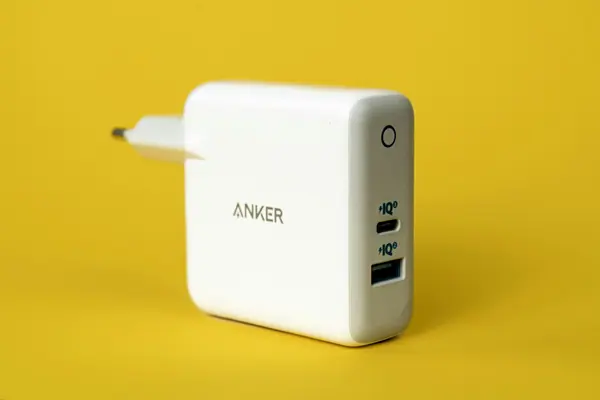
If the documentation does not say, do not invent an equal split. Ask the manufacturer or choose a better-documented product. Our Anker 737 review shows why port pairing matters, while the Anker versus UGREEN comparison explains how to compare unequal power budgets fairly.
Step 5: check the cable you will actually use
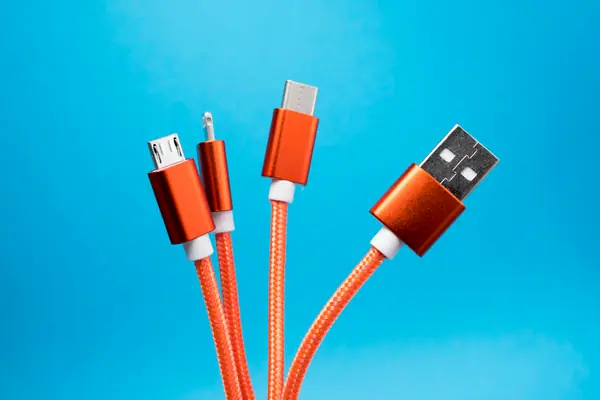
A suitable charger can be limited by a cable that does not support the intended power. Look for a clear cable power rating and credible certification information where available. USB-IF’s current cable certification rules use 60W and 240W power markings. The cable and connector guidance explains what those labels cover.
Do not assume that a high-wattage cable supports a monitor, a fast external SSD, or every docking station feature. Charging capacity and data capability need separate checks. If the cable is only for bedside charging, paying for high-speed data may provide no benefit. If it is the single cable to your workstation, those data and display details are essential.
Select a practical length, too. A very short cable can pull on a port when an outlet is awkwardly positioned. An unnecessarily long cable adds clutter to a small bag. Choose for the place you expect to use it most often.
Turn the checks into a shopping worksheet
Before opening a retailer’s comparison page, fill in the following. If a field is unknown, keep it as a question for the device or charger manufacturer rather than substituting a bigger wattage.
| Write down | Where to find it | Why it changes the purchase |
|---|---|---|
| Exact device model and recommended supply | Device support page or manual | Establishes the intended charging job |
| Required charging mode | Device maker’s PD/PPS or adapter guidance | Screens out an incompatible high-wattage charger |
| Devices that must charge together | Your own routine | Distinguishes simultaneous from sequential demand |
| Available output on each occupied port | Candidate charger’s allocation diagram | Checks whether the headline rating survives sharing |
| Cable power, data and display requirements | Cable specifications and device manual | Avoids fixing power while losing another needed feature |
For a worked example, suppose your documents call for 60W and 18W, and you want both available together. The arithmetic target is 78W total with a suitable 60W main port. That is a planning example, not a claim about a named device or a recommendation to round up to an arbitrary charger class. The charging power planner can repeat the calculation using your figures. A candidate still needs to publish a compatible split and the required protocols.
Keep the filled worksheet after purchasing. If a setup changes when a second cable is attached, compare the newly occupied ports against the allocation diagram first. On a Mac, Apple’s connected-power instructions explain where to find AC Charger Information in System Information. That reports adapter information; it is not a measurement of energy entering the battery throughout a charge.
Step 6: evaluate the physical setup and total cost
Measure the available space when an outlet sits behind furniture. Consider the direction the connectors face and whether neighboring sockets remain usable. A corded desktop charger can be easier to reach than a wall block under the desk, even if it is less compact in a suitcase.
Compare the charger, necessary cables, and any travel plug adapter as one purchase. Check region-specific input and plug information, return terms, and support. A temporary discount is less valuable than buying the correct configuration the first time.
GaN may help make an adapter smaller, but it is not a reason to ignore compatibility or documentation. Read what GaN charging means if that label is influencing your shortlist.
Step 7: verify the setup after it arrives
Inspect the adapter and cables before use. Start with one device, then add the other devices in the configuration you planned. Check the device’s charging indication or built-in power information where available. A normal charge indicator confirms a connection; it does not prove a particular advertised wattage.
If charging is unexpectedly slow, simplify the setup: use the designated port, remove other connections, try a known suitable cable, and follow the device maker’s troubleshooting steps. Avoid changing several components at once, because that makes the cause harder to isolate.
Allow ventilation and follow the adapter’s safety instructions. For example, Apple’s adapter guidance warns against covering an operating supply or using it in wet locations. Its instructions provide concrete handling guidance. Do not interpret a charger’s protective features as permission to use damaged equipment.
Common mistakes to avoid
The most expensive mistake is buying for the headline number and discovering the required power is unavailable on the intended port. Other common traps are confusing a power bank’s output with its input, choosing a cable by connector shape alone, and treating a broad device compatibility list as a promise of maximum speed.
There is also a scheduling mistake: assuming every device needs to charge at its fastest rate simultaneously. If your routine is flexible, a smaller shared adapter may be sufficient. If your time window is tight, paying for a better-suited configuration may save daily frustration.
What to buy next
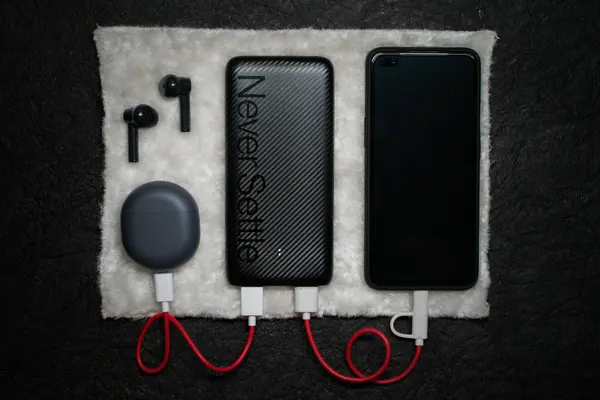
Once you know the protocol, power target, port combination, and cable requirement, compare the options in our best USB-C chargers guide. For charging away from an outlet, use the same reasoning with the power bank shortlist, adding capacity and carrying weight to the decision.
The goal is a setup you understand well enough to trust in an ordinary day. A correct charger that quietly does its job is a better purchase than a more impressive specification you cannot use.
Reader questions
How many watts does my charger need?
Use the device manufacturer's recommended adapter as your starting point. For a shared charger, verify that the required output remains available to the correct port while your other devices are connected.
Is a higher-wattage USB-C charger dangerous for a smaller device?
With compliant equipment, power is negotiated; the rated capacity is not automatically forced into the device. Use suitable, undamaged equipment and follow the device maker's guidance.
Why is my laptop slowly losing battery while plugged in?
Possible causes include insufficient available power for the workload, a limiting cable, an unsuitable port, or shared output. Check the computer's power information and manufacturer troubleshooting guidance before replacing components.
Sources & further reading
Product information checked October 24, 2026. Specifications and availability can change.